Instructions
🦜 Golos — Voice Input Extension for Chrome
1. Why this extension exists
Golos is a Chrome browser extension that allows you to dictate text by voice and automatically insert it into any editable text field: email, messengers, documents, forms, chats, and other websites.
The extension is designed for:
- fast text input without a keyboard;
- saving time;
- comfortable work with large amounts of text;
- correct punctuation during dictation.
2. How to install Golos
- Go to the Chrome Web Store.
- Find the Golos extension or follow the provided link.
- Click “Add to Chrome”.
- Confirm the installation.
After installation, the Golos icon  will appear on the browser extensions toolbar.
3. How to grant permissions in Chrome
For proper operation, Golos requires standard browser permissions:
- access to the active tab;
- access to the microphone.
Chrome will automatically request microphone permission when you start dictation for the first time.
Please click “Allow”.
⚠️ Without microphone access, voice dictation will not work.
4. How to dictate text?
- Click inside any text field on a website (for example, WhatsApp, Gmail, or Word Online).
- Press the keyboard shortcut:
Alt + Shift + G
or click the icon on the extensions toolbar.
A compact Golos widget will appear:
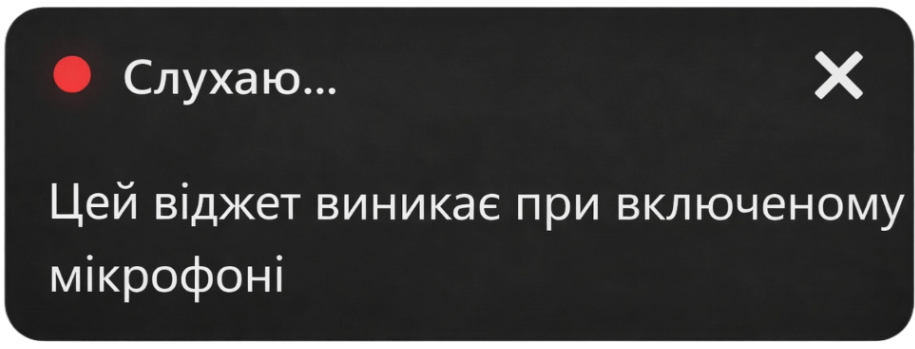
- Start speaking. You will see how your speech is being recognized inside the widget.
- Chrome will automatically insert the processed text into the input field, applying commands and replacing them with punctuation marks.
💡 Example
To insert punctuation, simply say its name:
- 🗣 "Hello comma how are you question mark" →
Hello, how are you? - 🗣 "New line" → Moves text to a new line.
- 🗣 "Paragraph" → Moves text to a new paragraph.
- 🗣 "Open bracket" / "Close bracket" →
() - 🗣 "Dash" →
—
- To stop dictation, press Alt + Shift + G again,
or click the icon on the Google Chrome extensions toolbar,
or use the close button on the widget.
Appendix: Voice Commands (Punctuation & Symbols)
⚠️ Coming soon
Voice commands for punctuation and symbols are currently available only for Ukrainian.
English voice commands (for example: comma, period, new line, etc.) are planned for a future version of Golos.
5. How to open Golos options
There are two ways:
Method 1:
- Right-click anywhere on the page.
- Select “⚙️ Golos Settings”.
Method 2:
- Open the Chrome extensions management page.
- Find Golos.
- Click “Options”.
In the options page you can:
- select the recognition language;
- view extension version information.
Technical support:
📧 support